Tutorial
It explains how to install ThorVG WebCanvas and how to draw various graphic elements through WebCanvas with simple examples.
Install
You can download the ThorVG via the NPM channel. The latest version is recommended. ThorVG WebCanvas is available via NPM-based package managers (npm, yarn, pnpm) and can also be accessed through the unpkg CDN.
Install via NPM
You can install ThorVG WebCanvas via npm:
Then import it in your TypeScript or JavaScript code:
Install via CDN
For quick prototyping or simple projects, you can use ThorVG WebCanvas directly from a CDN without any build tools.
Basic Programming
ThorVG WebCanvas supports TypeScript and JavaScript Programming Interfaces. The following is a quick-start to show you how to use the essential APIs.
Initialization
In the first step, initialize the ThorVG engine. This prepares and runs the engine internal steps.
The renderer parameter determines which rendering backend to use:
-
gl - WebGL rendering backend, wide browser support
-
wg - WebGPU rendering backend, requires Chrome/Edge 113+/Firefox 145+/Safari 26+
If you need to locate WASM files in a specific directory, you can use the locateFile option:
ThorVG renders vector scenes to the given canvas buffer. The following shows you an example of how to prepare an empty canvas for drawing:
The Canvas constructor requires a CSS selector for the target HTML canvas element and optional configuration. WebCanvas automatically manages the canvas buffer and handles device pixel ratio for high-DPI displays.
Shape
Once a canvas is ready, you can create shapes by adding them to the canvas.
After a rounded rectangle is appended, its color is set and then the shape is added to the canvas.
This shape from the example looks as follows:
Path
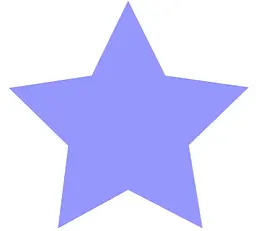
Besides predefined shape types, you can compose arbitrary shape types using a path concept. A path is a list of commands that are commonly used in traditional 2D vector drawing. Below you can see an example of how to define your own forms.
By using the Path, lines and Bezier curves can be drawn. Additionally, you can set preset list using
Shape.appendPath() for optimal data delivery.
The output of the example is as follows:
Fill
ThorVG supports both solid color fills and gradient fills. You can use linear gradients and radial gradients to create rich visual effects.
The output of the example is as follows:

Stroke
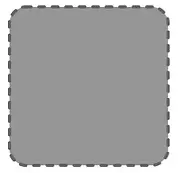
Stroking enables you to draw the outline of shapes as well lines. You can simply add stroke properties to a shape if needed. Stroke supports both a solid color and a gradient fill and also 4 major properties - width, cap, join and dash pattern.
The output of the example is as follows:
Scene and Transformation
ThorVG provides an interface to build Paint groups by composing multiple Paints. This is useful when you consider a scene-graph structure and manipulate a scene as a control unit. The code below shows how to use the ThorVG Scene and transform it.
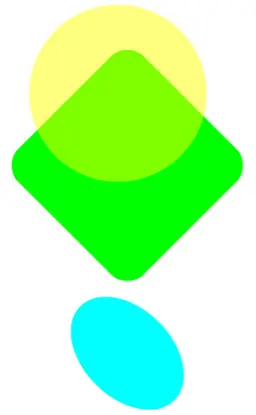
All kinds of Paint type nodes (Shape, Scene and Picture) can be added to the Scene as its children. You can scale this logic and build a complex scene by compositing multiple Scenes. In the example, we create a scene-graph tree and we demonstrate how to transform it using translate(), scale(), rotate() methods. ThorVG also supports the transform() method which expects a transformation matrix.
The output of the example is as follows:
Picture
The Picture is a special component that is designed to draw a scene on the Canvas from image data. ThorVG supports several image formats including vector-based and bitmap-based formats.
The output of the example is as follows:

Text
ThorVG offers robust text rendering capabilities, including support for Scalable TrueType Fonts (TTF). It efficiently handles Unicode text, accepting UTF-8 (or ASCII) characters as input. ThorVG processes these characters by converting them into Unicode codepoints, subsequently generating vector data for the corresponding glyphs.
Note that the global font data loaded into ThorVG is typically shared among various text objects. This font data is automatically released when the ThorVG engine is terminated, which is done using Canvas.destroy(). If you need to immediately free up the font resources, You can manually unload the font data using the TVG.Font.unload() API.
The output of the example is as follows:

Composition
ThorVG applies composition for visual effects such as blending, masking, filtering, etc. You should be aware though, that a composition may perform an additional render-processing on an off-screen buffer. The excessive usage of a composition won't be helpful if lightweight processing is a priority for you. A hint - sometimes you can avoid a composition by changing the application or the design approach while maintaining the same visual effects.
The output of the example is as follows:
Animation
The Animation component facilitates the manipulation of animatable elements, such as Lottie. It enables the display and fundamental control of animated frames. Essentially, one animation instance corresponds to a single picture instance. You can assign any animatable resources to the associated picture and play the animation using the animation instance.
First, an animation and a picture are generated. The Lottie file (lottie.json) is loaded into the picture, and then the picture is added to the canvas. The animation frames are controlled using the animation object to play the Lottie animation. Also you might want to know the animation duration time to run your animation loop.
Let's suppose the progress variable determines the position of the animation, ranging from 0 to 1 based on the total duration time of the animation. Adjusting the progress value allows you to control the animation at the desired position. Afterwards, the canvas is updated to redraw the picture with the updated animation frame.
Drawing, the final step
Once all paint nodes have been added to the canvas, you can request the drawing task as the final step. Calling canvas.update() triggers the preprocessing stage of the rendering pipeline, but it does not perform rasterization. The actual rasterization occurs when canvas.render() is invoked.
After getting the frame image, you can flush out all the added paint nodes from the canvas with canvas.remove() call.
More examples
You can try out ThorVG WebCanvas APIs interactively in the ThorVG Playground. The playground provides live code examples and allows you to experiment with various features in real-time.